
Create
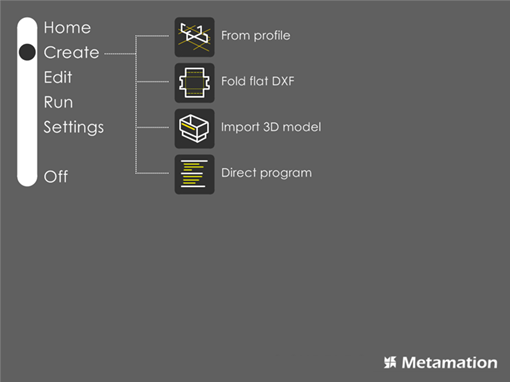
The Create page is used to create new press-brake programs. There are four program creation modes available, as seen from the four icons on this page:
From profile: Create a program by drawing a new profile or reusing an existing profile and then extruding the profile to the desired length. The program is then automatically sequenced and tooled-up for bending. Profiles are stored in a list for later reuse.
Fold flat DXF: Create a program by starting with a flat DXF part (a development), and then fold it to create a 3D model. You can edit the bend lines in the DXF and set bend angles and directions before folding it up. The bends in this model are automatically sequenced and tooled-up for bending. Before folding up the flat pattern, make sure you enter the required parameters in the Settings dialog and verify the thickness and material used. If you plan to use special tools, you should select and lock them in the same dialog. In fact, those parameters influence the dimensions of the resulting folded 3D model. After this initial folding, the 3D model always maintains its dimensions even if you change the tooling using the Edit > Sequence > Recompute.
Import 3D model: Create a program by starting with a 3D model, an IGES or other common 3D formats (SolidWorks, SolidEdge, STEP, Parasolid etc). The bends in this model are then automatically sequenced and tooled up. When you import a MetaCAM 3D model, that is already tooled and sequenced, you will find that the model is re-tooled while importing it in RightAngle Control. To keep the tooling intact, you can go to the Edit page and use the import command that transfer provides. Once imported, you can either run or edit the program and then process the model on the brake.
Direct program: Create a program directly simply by entering back gauge positions, bending angles and bend lengths. The program can be run directly on the brake with a suitable blank.
| In the first 3 methods, a 3D model of the part you are producing is available (or created) and can display 3D simulations of the bending process. It can also check that the part being bent will not collide with the press-brake or with the tooling. Fouling between different parts of the component during the bending cycle can also be checked. However, with the Direct program method, these checks cannot be done since does not have a complete 3D model of the component you are trying to produce. Use this method with care. |