RightAngle Reference Manual

  • Welcome to RightAngle Control
  • Introduction
    • User Interface
    • Gauging
    • Tools
    • General panels
    • Application notes
      • Selection of Tools
      • Air bending
      • Large Radius Bending
      • Hemming
      • Coining
  • Home
  • Create
    • From Profile
      • Profile Selection
      • Create/Edit a Profile
      • Extrude
    • Fold Flat DXF
      • Main Screen
      • Create
      • Edit
      • Fold
    • Import 3D model
      • Main screen
      • Unfold
      • Do Tooling
    • Direct Programming
      • Main Screen
      • Add/Remove
      • Settings
      • Run
      • Navigate Bend
      • Corrections
      • Jog
      • Table Programming
    • Setting page
    • Create Tool
  • Edit
    • Sequence
    • Back gauges
    • Tooling
    • Simulation
  • Run
    • Main Screen
    • Model Based WF
      • Setup Sheet
      • Run Program
    • Program Based WF
      • Info Screen
      • Run
    • Corrections
    • Edit Cycle
  • Settings
    • Jog Axes
    • Manual Program
    • Tool Inventory
    • Other Settings
  • Feature list
    • Angle Measurement System (Pre-release)
      • IRIS Plus (Pre-release)
  • Tandem Operation
    • Operation
    • Communication Error
  • Impressum
  • FAQs
    • Licensing
Edit
/
Simulation

Simulation

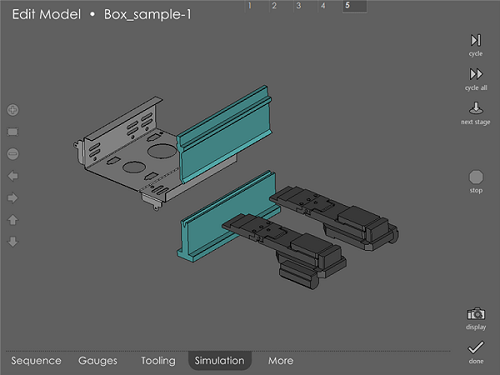
In this page, you can see an animated 3D simulation of the bending process.
simulat

Menu options

Touching the cycle button runs the simulation of the current bend. Normally, the simulation is displayed with the punch, die and back-gauges visible. Use the display button to customize the view, so that the entire machine is displayed.

Touch the cycle all button to display a simulation of all the bends, one after the other. When this is running, touch the stop button to stop the simulation process.

The next stage button, on each click, positions the simulation in the next stage of bending.

done

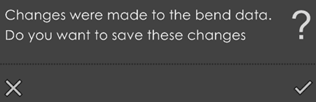
After you have finished viewing or editing the model, touch the done button to return to the home page. At this point, if there are any changes made, a prompt like the one below is displayed:
confirm1

If you choose the changes are saved and a new bending program is generated, ready to run on the machine. If you choose , all editing changes you made are discarded and the model reverts to its state before it was opened for editing.

More

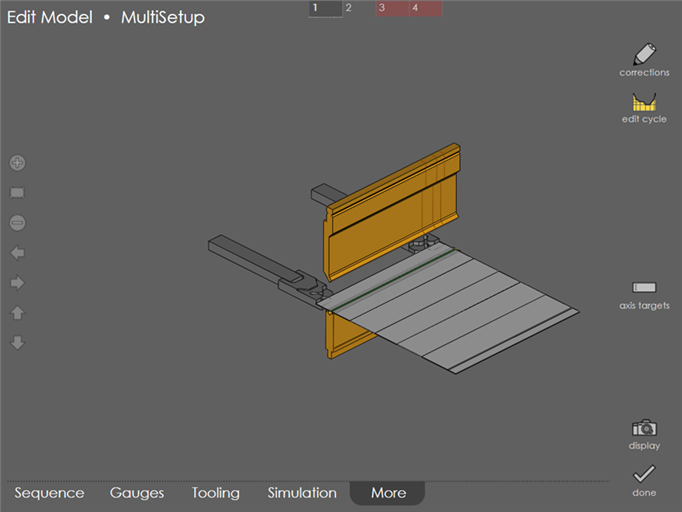
Use More page to edit corrections, edit cycle data and axis targets.
multisetup

Contents

  • Menu options
  • done
  • More
Tooling Run

      Copyright © 2025 TRUMPF Metamation. All rights reserved.

    Compiled by Bento