
General panels
File Selection
The File Selection panel appears whenever you need to pick a file in RightAngle Control. This panel displays a list of files in a folder. The list of drives available and a partial list of folders are displayed on the left:
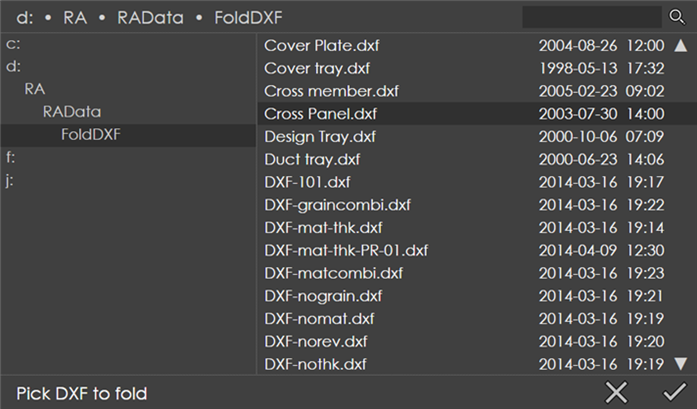
Navigate to another folder by touching on the folder names or drive names on the left. For example, from the view above, if you would like to navigate to c:\RA2012\RAData\FoldDXF, touch the c: drive name. This opens the corresponding drive and lists all the folders within. Then, touch RA2012, then RAData and then FoldDXF. After navigating to the right folder, touch the filename you want to open, and then press the OK mark at the bottom right corner. You can use the pointer shown to the bottom-right corner to scroll down and view other files.
Searching Files
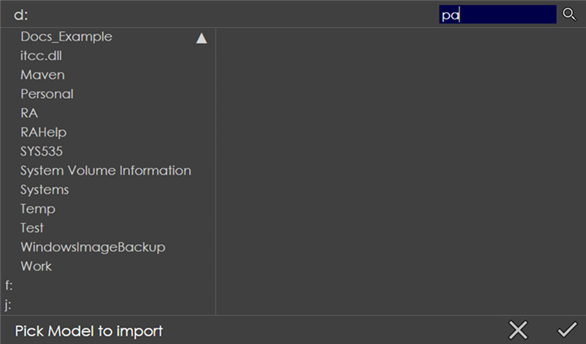
Use the small search bar that is present in the top right corner of the dialog for searching files. Type in a part of a filename (without any file extension) and click on the search icon in the top right corner.
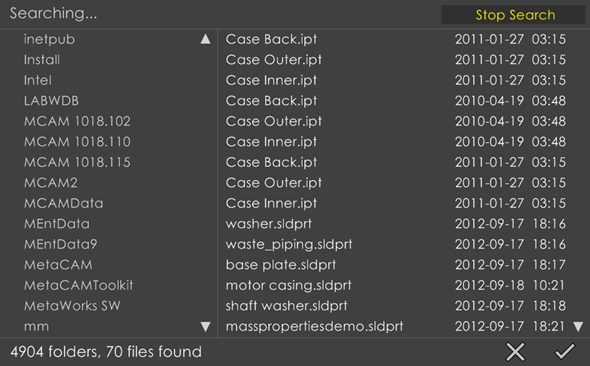
The search, then begins. It searches the sub-directory we are currently in and all the sub-directories. So, you could search an entire hard disk by starting at the root directory. During the search, the title changes to Searching… and a running counter of directories and files are displayed at the bottom. Also, the top right displays a Stop Search button to stop the search.
Once the search is completed (or if you click the Stop Search button earlier), the caption on the top changes to Search Results and the number of files found are displayed in the bottom:
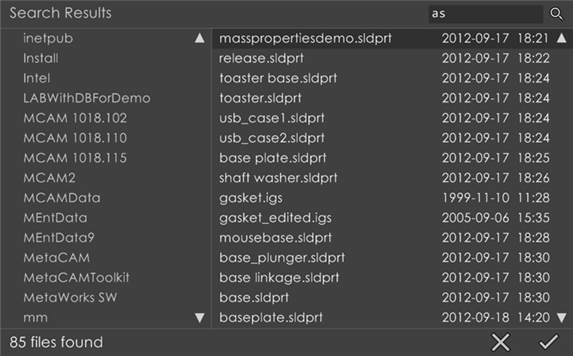
You can now scroll through all the search results and open a file. Alternatively, just tap a folder from the left pane to close the search results and start navigating through the folders.