
Profile Selection
This option is used to create extrusions based on a profile which is defined in a parametric manner. When you press this option, displays the parametric profile shapes you have already created:
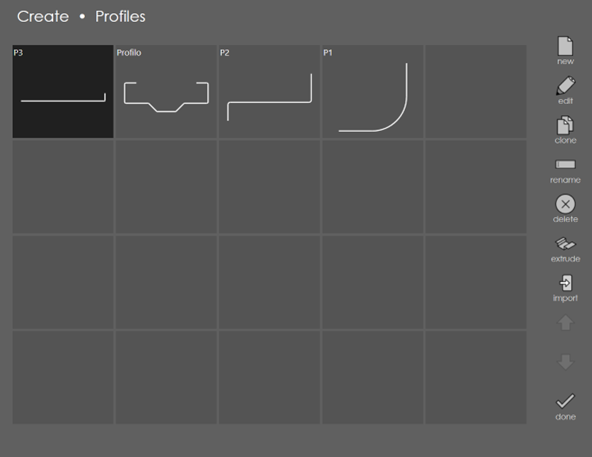
The buttons on the right are explained below:
new
You can sketch a completely new profile by touching new. The profile starts with a single straight section, but you can then add new sections and modify the lengths of sections and the angles between sections.
edit
Select one of these profiles by touching it, and then touch edit to modify it for use. From this, editor window, you can then set up a suitable material and thickness and extrude the profile to create a workpiece.
clone/delete
Use clone to make a copy of the selected profile (so you can then modify the copy), or touch delete option to delete the selected profile.
rename
Click on the rename button and it opens a dialog (see picture below) to rename the selected profile.

extrude
Select an existing profile and then click extrude. The part settings dialog pops up where the value for Extrusion can be entered and then press the done button to create it. See the section on Part Settings for more details.
import
Click on the import button to import a dxf file which contains the side view of the part.