RightAngle Reference Manual

  • Welcome to RightAngle Control
  • Introduction
    • User Interface
    • Gauging
    • Tools
    • General panels
    • Application notes
      • Selection of Tools
      • Air bending
      • Large Radius Bending
      • Hemming
      • Coining
  • Home
  • Create
    • From Profile
      • Profile Selection
      • Create/Edit a Profile
      • Extrude
    • Fold Flat DXF
      • Main Screen
      • Create
      • Edit
      • Fold
    • Import 3D model
      • Main screen
      • Unfold
      • Do Tooling
    • Direct Programming
      • Main Screen
      • Add/Remove
      • Settings
      • Run
      • Navigate Bend
      • Corrections
      • Jog
      • Table Programming
    • Setting page
    • Create Tool
  • Edit
    • Sequence
    • Back gauges
    • Tooling
    • Simulation
  • Run
    • Main Screen
    • Model Based WF
      • Setup Sheet
      • Run Program
    • Program Based WF
      • Info Screen
      • Run
    • Corrections
    • Edit Cycle
  • Settings
    • Jog Axes
    • Manual Program
    • Tool Inventory
    • Other Settings
  • Feature list
    • Angle Measurement System (Pre-release)
      • IRIS Plus (Pre-release)
  • Tandem Operation
    • Operation
    • Communication Error
  • Impressum
  • FAQs
    • Licensing
FAQs
/
Licensing

Licensing

Q1: How to register RightAngle Control license?
  • Start the registration process by entering your serial number in RightAngle Control.

  • If you encounter the "Connection to server failed" message, then follow these steps:
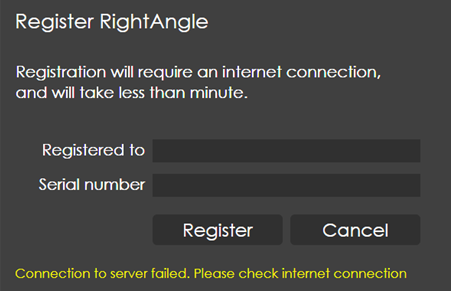
    register

    • A file named rightangle.request will be generated when the "Connection to server failed" message appears. You can find the rightangle.request file at: C:\Users\”UserName”\AppData\Local\RightAngle.

    • Email the rightangle.request file to Balakrishnan.madurakavi@trumpf.com.

    • Post emailing, you will receive a file named rightangle.db.

    • Download and place the rightangle.db file in the same directory: C:\Users\”UserName”\AppData\Local\RightAngle.

Q2: How to update the license?
  • If there is any update in license - for instance, if customer purchased license bit named "3D import", it will be added to their corresponding license.

  • Follow these steps to update it in RightAngle Control:

    • Navigate to: C:\Users\”UserName”\AppData\Local\RightAngle and delete the rightangle.db file.

    • If rightangle.request file exists in the same location, delete that as well.

    • Send an email to Balakrishnan.madurakavi@trumpf.com with details regarding update in license.

    • The TMM will process your request and release the license.

    • Once you receive the license, follow the standard registration process. (Refer to Q1)

Q3: What to do if license gets expired?
  • To extend your license, send an email to Balakrishnan.madurakavi@trumpf.com, mentioning that your license has expired and requesting an extension.

  • Once your request is processed, the license expiry date will be updated.

  • To Update the License in RightAngle Control:

    • Go to: C:\Users\”UserName”\AppData\Local\RightAngle and delete the existing rightangle.db file.

    • If rightangle.request file is also present, delete that as well.

  • You will receive a new rightangle.db file via email.

  • Place this file in the same directory: C:\Users\”UserName”\AppData\Local\RightAngle.

  • Once the new file is in place, your license will be successfully extended.

Q4: What to do if "Signature Changed" message appears?

"Signature Changed" message typically indicates a hardware change, which causes a mismatch in the machine’s signature used for license validation.

To prevent this issue, always contact the TMM to release the license before making any hardware changes.
Q5: When does the "ID Expired" error appear?

Once the license signature has been changed, the user is no longer permitted to use the license. If the user ignores the "Signature Changed" message and attempts to release the license, the system will display an ID Expired error.

Do not attempt to release the license when this error occurs. Contact TMM for assistance.
FAQs

      Copyright © 2025 TRUMPF Metamation. All rights reserved.

    Compiled by Bento