
Tool Inventory
This option is used to view and adjust the tool inventory. A complete tool catalogue for the type of tooling used on your press-brake is installed with RightAngle. You can select certain tools from this catalogue and tag them as being in your inventory by adjusting the quantities of the various pieces.
Full catalog:
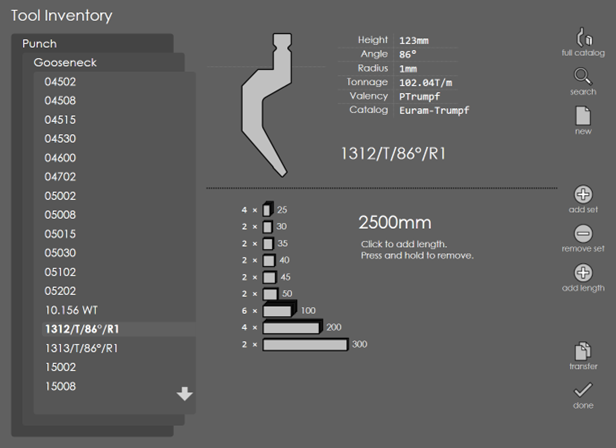
Press this button to view the entire tooling catalogue that the system contains. You can then navigate to the tool of your choice. You can view the profile of the selected tool on the top right, along with its details. A few details like Height, Angle, Radius, Tonnage, VWidth, Valency etc. are displayed. In the bottom pane you can find additional tool details displaying the number of pieces the tool comprises as well as the total length of the tool. In case, if a tool has a valency that does not match the machine, there is a warning text displayed in yellow: Tool cannot be mounted directly on machine. This means the valency of the tool does not match that of the machine.
Search:
Touch this button to search for a particular tool. See Searching a tool for details.
New:
Touch this button to create a new tool. See Creating a custom tool for details.
Add Set:
Touch this button to add a complete set of standard pieces to the inventory of the selected tool. You can also touch an individual piece to add up that piece alone to the inventory.
Remove Set:
Use this option to remove a set of standard pieces from the tool inventory.
Add Length:
Press this button to add the length of the tool. Press the same and hold to remove.
Transfer:
Use this option to import or export tools. Once you press this button, you can find the Import and Export options being displayed. To export a tool, navigate to the corresponding tool and then press export. This opens the file selection panel. Select the directory in which you want to tool to be exported and then press the OK mark. This exports the selected tool with a .dxf extension. Similarly, you can import a .dxf/.arv file by selecting the tool traversing through the directories displayed in the file selection panel. This import and export options facilitate the exchange of defined tools across machines. Press the cancel mark to exit the transfer mode. You can create a clone of an existing tool by clicking Clone. By giving different tool height, we can change the height of tool while cloning. RightAngle will try to adjust tool geometry for the new height. If it fails, it modifies the reference point and give warning message. The tool is immediately opened for editing so you can adjust some parameters. To delete a tool permanently click on the Delete button. Note that this can be done only with tools that you imported. Tools that exist in standard tool catalogs cannot be deleted. Custom tools can be saved through save and load so that program can be used across RightAngle installed at different location.
Selecting a different tool
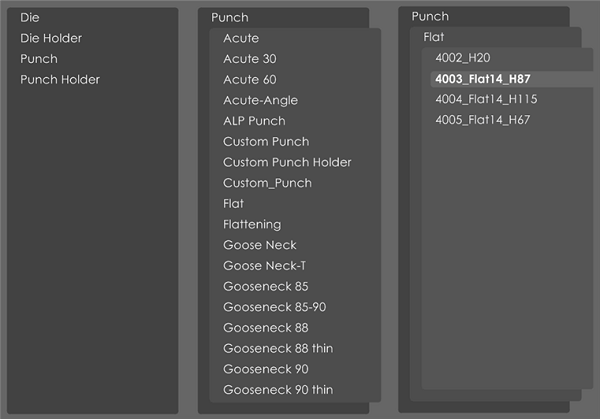
Selecting a different punch or die is a multiple-stage process. First touch the Punch indicator on the top to display a list of different types of tools. Then, touch the tool shape, and finally the actual tool name. Here are the 3 stages displayed in succession:
Searching a tool
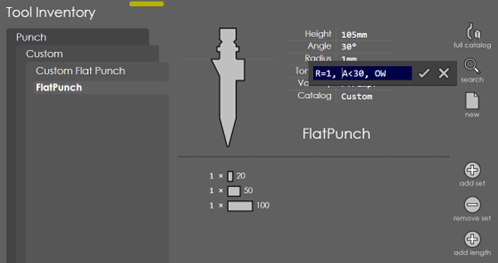
The above search matches tools with Radius=1, Angle<30 and having OW in the name.
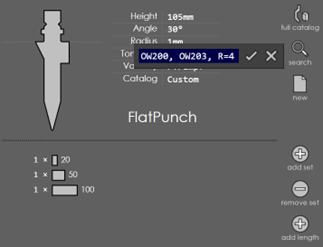
The above search matches all tools with OW200 OR OW203 in the name, and Radius=4.
The search string contains a list of comma-separated words. If a word is of the type:
-
A<30
-
R=1
-
H>140
-
V=12
Then it is a conditional. The values that can be compared are A (angle), R (radius), H (height) and V (v-width). the conditional operators are < = and >. If there are multiple conditionals, all of them must match. If a search word does not have any of these operators, it is a simple name-match and tools that contain the sequence in their name will match. If there are multiple names provided, any one of them needs to match the tool. The search string can be as complex as needed. For example, A<30, H>140, H<220, R=1, OW, EV
This will match all tools with OW or EV in the name, and matching these additional conditions: Angle<30, Height>140, Height<220, Radius=1.
| The < and > are really interpreted as ⇐ or >=. In other words, H<140 will match tools with height less than or equal to 140. |
Creating a custom tool
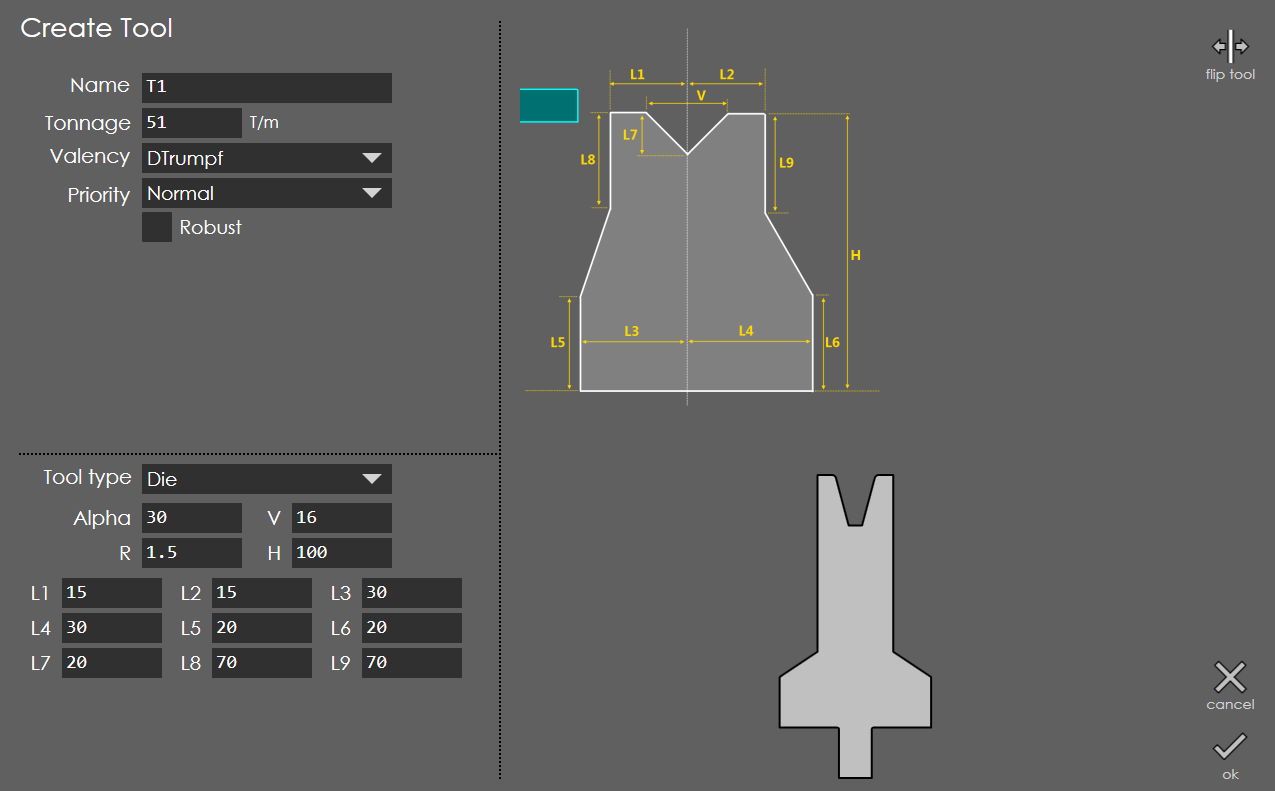
By entering the parameters explained in the diagram, custom tools can be created. We can create punch, die, punch holder, and die holder using above method.